Before you move
So buyers can always place an order somewhere, prepare and test the new shop fully and only then close the old site. First open your shop on OpenShop: sign-up, DAN verification, name and address, contract. The guide is at docs.openshop.mn/open-shop.
- Download your product list from your old platform as a CSV file. If you cannot, collect your product page links.
- Download your order history, customer list and reports from the old platform and keep them. They do not move to OpenShop.
- Payment agreements made through the old platform do not move. You connect payments again on OpenShop.
Bringing products in by CSV
On the Products page in the console, click Import and choose your file on the CSV file tab. It reads the OpenShop template and a product CSV exported from Shopify.
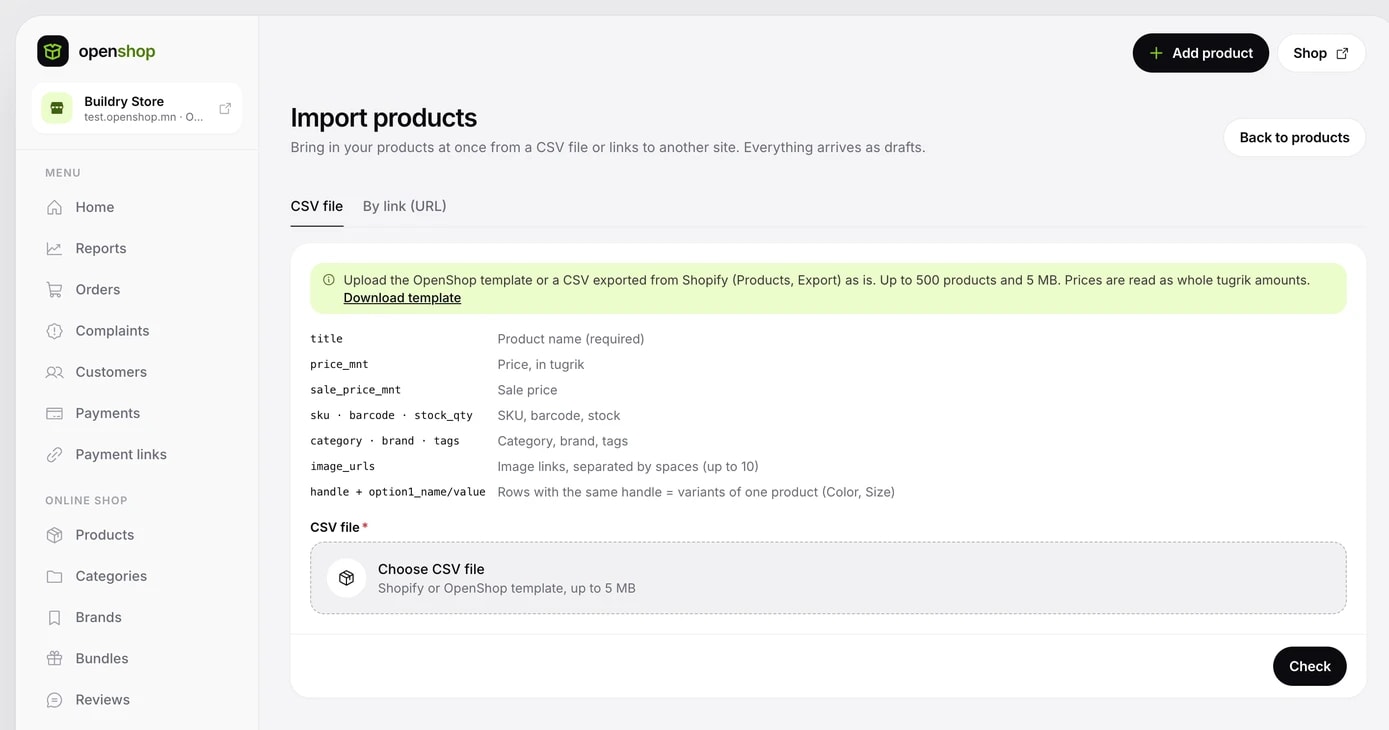
- The OpenShop template: get it with Download template. Its columns are handle, title, description, price_mnt, sale_price_mnt, sku, barcode, stock_qty, category, brand, tags, image_urls, and option1_name, option1_value through option3.
- Mongolian column headings work too: the words for name, description, price, sale price, old price, product code, barcode, stock, category, brand, tags and photo.
- Rows with the same handle become variants of one product (for example Colour, Size). Up to 3 options and 100 variants per product.
- In the image_urls column, separate photo links with spaces or commas. Up to 10 photos per product.
- A Shopify export: rows with the same Handle become one product and the Option columns become variants. Vendor becomes the brand, Product Category or Type the category, Tags the tags, Image Src the photos and Variant Inventory Qty the stock. For a product with a single variant, Compare At Price becomes the price before the sale.
- Prices are read in tugrik as whole numbers: 89000, 89,000 and 89 000₮ all work. A row with a fractional price such as 12.50 shows an error.
- Save the file as UTF-8. In Excel, save as CSV UTF-8. Comma, semicolon and tab separators all work.
- Up to 500 products and 5 MB per file.
Bringing products in by link
If you cannot download a file, write one product page link per line on the By link (URL) tab. The system reads the product's structured data on the page.
- Up to 20 links at a time.
- When a page has schema.org Product or ProductGroup structured data (JSON-LD), it reads the name, description, photos, price, SKU, barcode, brand and variants. Variant colour, size, material, pattern or a named additional property become options. A variant marked as sold out gets a stock of 0.
- From a page without structured data it reads the Open Graph details: title, description, photo and price.
- Enter a Shopify shop's home page address on its own and up to 500 published products are read with their variants, categories, brands and tags.
- When the price's currency is not tugrik, or is unknown, the price stays empty with a warning.
- A Shopify shop's product page gives its variants, category, brand and tags. Other product pages do not give categories, tags or stock counts; add those in the console.
- A page with neither structured data nor Open Graph details shows an error saying no product details were found. Use a CSV file in that case.
Checking, importing and publishing
- Click Check. You see the result, errors and warnings for each row without anything being written to your catalog.
- To create categories your shop does not have, tick Create missing categories. Otherwise those products come in without a category. Missing brands are created automatically.
- Click Import. The import carries on in the background, so you can close the page.
- When it finishes, open View draft products and check each product's price, variants, photos and category.
- Publish the products. A product with missing details (for example description, photos or price) is not published, and the list of what is missing is shown.
- Every imported product arrives as a draft. Nothing is published automatically.
- Stop finishes the product in progress and then stops. The drafts already added stay.
- For products with variants, the old (compare-at) price is not imported. Set up the sale in the console.
What does not move
Import moves products only. Download the items below from your old platform for your records and recreate what you need on OpenShop.
- Order history and reports.
- Buyer accounts and passwords. Buyers sign in on OpenShop afresh.
- Reviews and ratings. On OpenShop, reviews can only be left by people who bought from that shop.
- Coupons, promotions, gift card balances and points. Create them again under Marketing.
- Blog posts and information pages. Add them again under Website.
Payments and e-barimt
Send your payment request while you publish products. You can check your products while you wait for approval.
- Payments: connect QPay and card payments after sending your shop details and getting approval. Connect wallets and installment payments with your own agreement with each operator. Guide: docs.openshop.mn/payments.
- E-barimt: enter your taxpayer number and send a request. Once approved, a receipt is issued for every payment automatically. Guide: docs.openshop.mn/e-receipt.
- After connecting, make one real payment of a small amount and check that the money reaches your account.
Your own domain and old links
Point your own domain at OpenShop last. Until you change the DNS record your old site keeps working, and the your-shop.openshop.mn address works too.
- In the Your own domain section of the Settings → Site tab, write your domain and click Connect.
- Add the A record shown on screen to your domain's DNS. We recommend adding www too.
- Once DNS has spread, click Check. If it is not verified within 24 hours it is cancelled, and you connect it again.
- After it is verified, the SSL certificate is activated automatically and your domain shows the new shop.
Read more in the Connecting your own domain section of docs.openshop.mn/website.
Search engines
The new shop's sitemap.xml, product structured data and llms.txt are created automatically. Old pages drop out of search results gradually and the new pages come in.
- If you have your own domain, submit the new sitemap.xml in Google Search Console.
- On the Settings → Search engines tab, set the SEO title, description and share image.
- More: docs.openshop.mn/search-visibility.
Moving checklist
- Downloaded and kept the old platform's order history and customer list.
- Imported the products, checked each draft's price, variants, photos and category, and published them.
- Set the delivery fee and wrote the delivery, payment and returns terms.
- Connected payments and tested with one real payment of a small amount.
- Sent the e-barimt request.
- Recreated coupons, promotions, blog posts and pages.
- Connected your own domain and checked that SSL is active.
- Changed the links on social pages, ads and QR codes to the new address.
- Placed a test order in the new shop before closing the old site.