Send your details
- Open Settings, E-barimt.
- Enter the company TIN (11 to 14 digits). If you do not know it, type your 7-digit register number and click Search.
- Choose whether you are a VAT payer. Shops that are not VAT payers issue e-barimt too.
- Choose your location code by province, district and khoroo.
- Pick the classification code of your main products step by step from the list, then click Request approval.
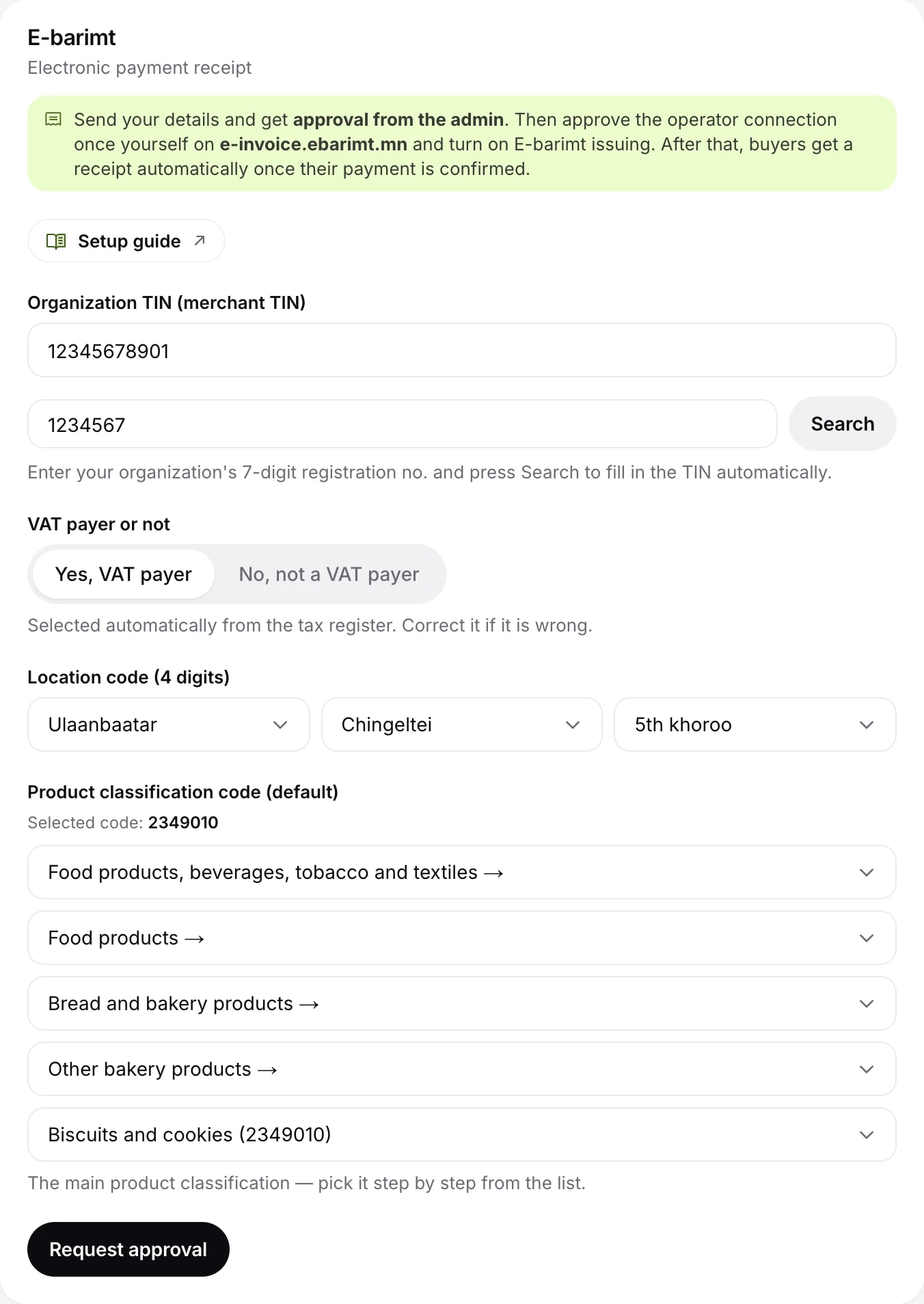
The shop owner or an admin does the setup. OpenShop reviews and approves the request and sends your TIN to the e-barimt operator automatically.
Approve the operator connection
Only you can give permission to issue receipts on your TIN, so you do this step yourself, once.
- When the Operator connection row says your approval is pending, click the Open e-invoice.ebarimt.mn button.
- Sign in with your company's e-barimt access and go to Requests, POS API requests, Operator connection. The Ebarimt app works too.
- Find the request from the operator Buildry AI and approve it.
- Come back to OpenShop and click Check again.
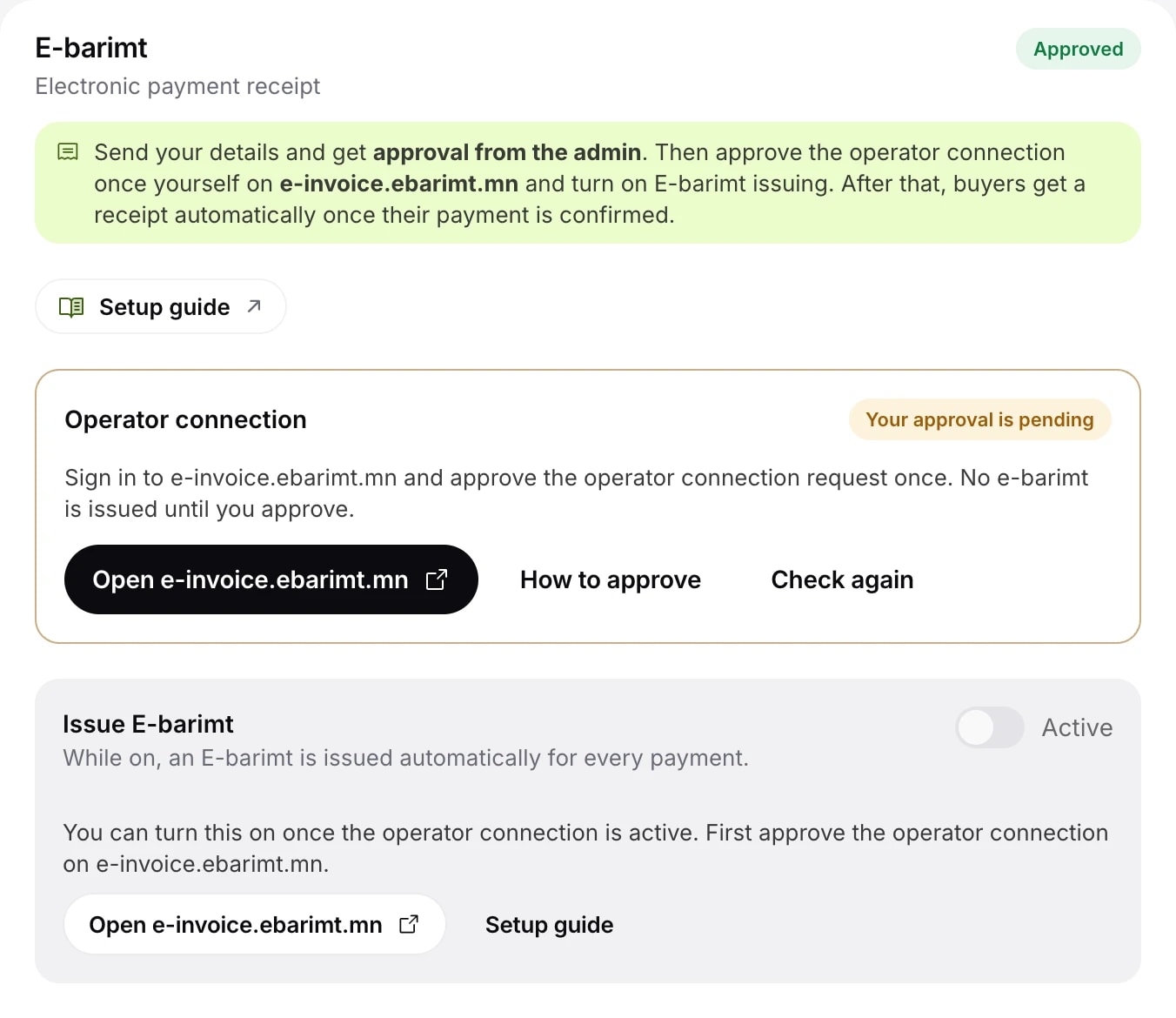
Turn on e-barimt
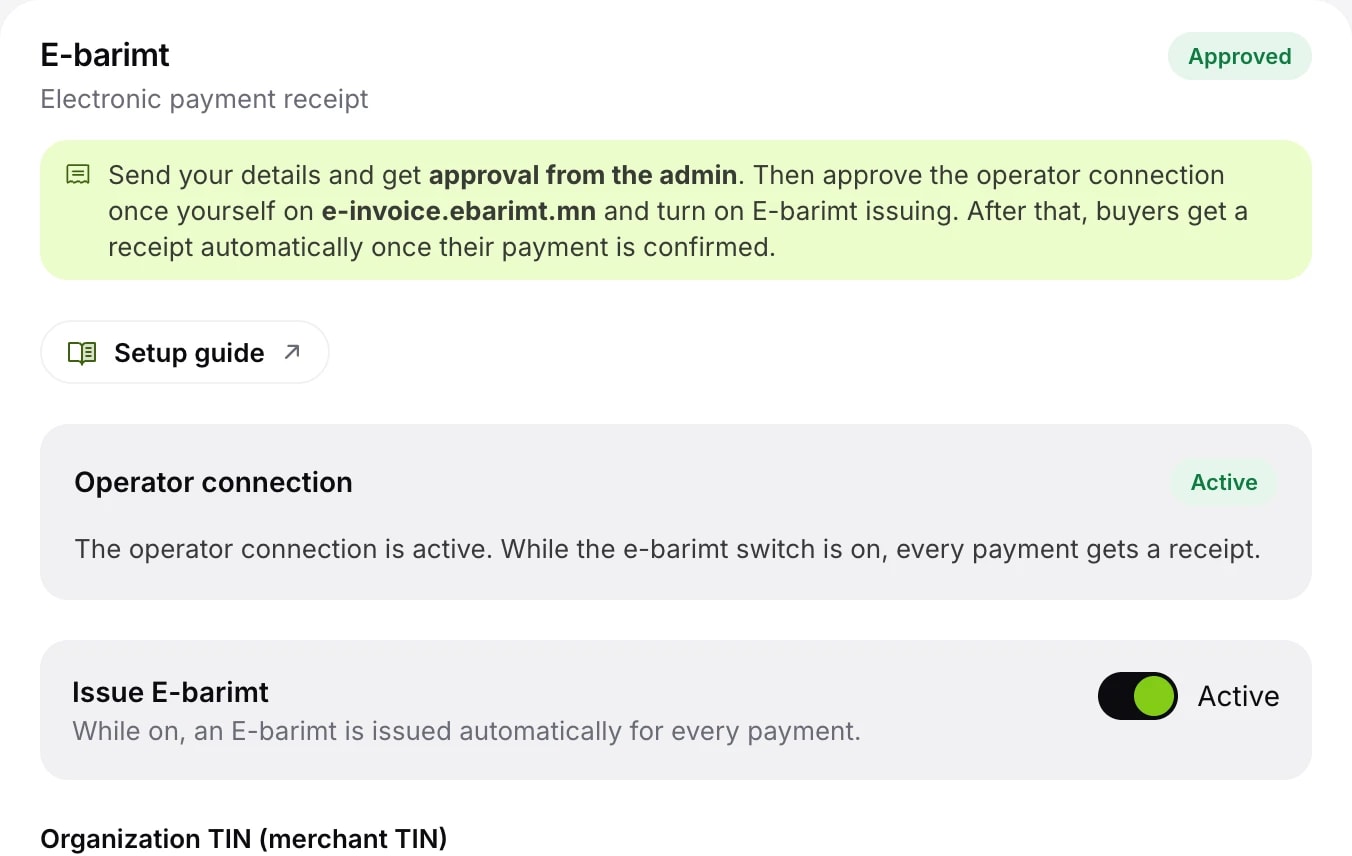
- Once the operator connection is Active, turn on Issue e-barimt and click Save.
- From then on every confirmed payment issues a receipt, emailed to the buyer. On the checkout page, individuals can enter their registration number and companies their TIN.
To set a barcode or a different classification code for a product, use the E-barimt tab of the product editor. For details, read the setup guide in the E-barimt section of the console.