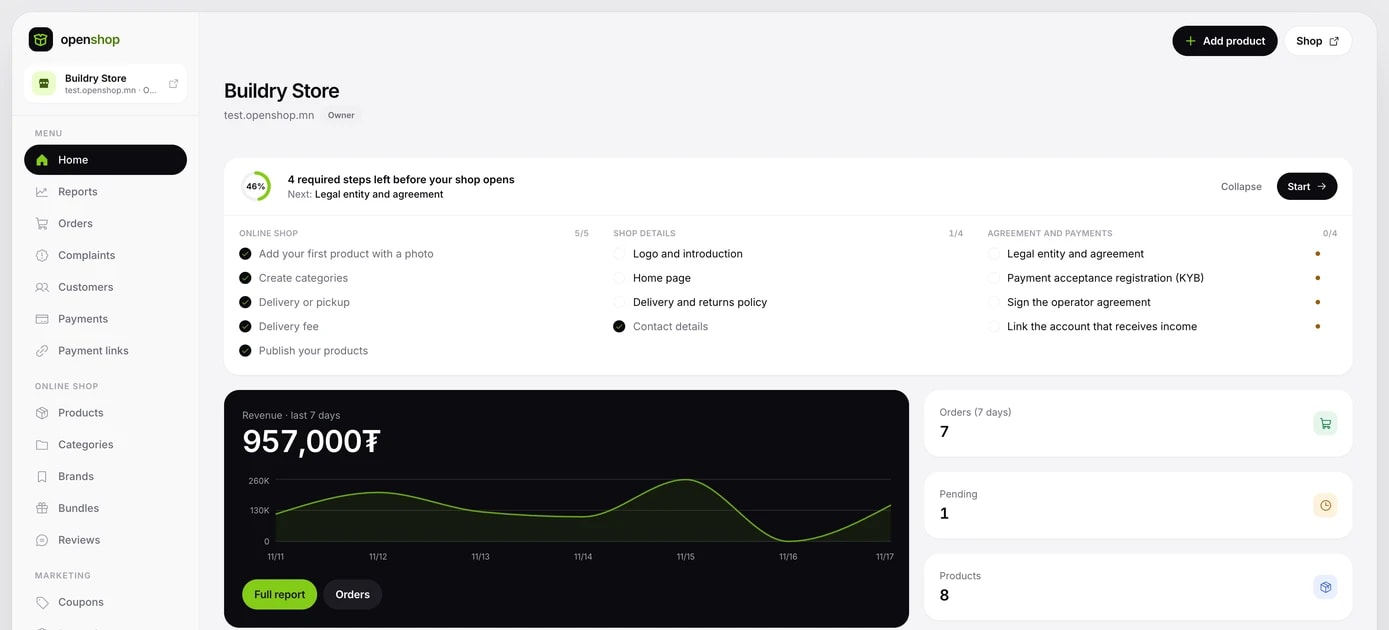
Setup checklist
It shows what is done and what is left, grouped into shop details, contract and payments, and products. Click the next-step card to open that page.
Changing the theme
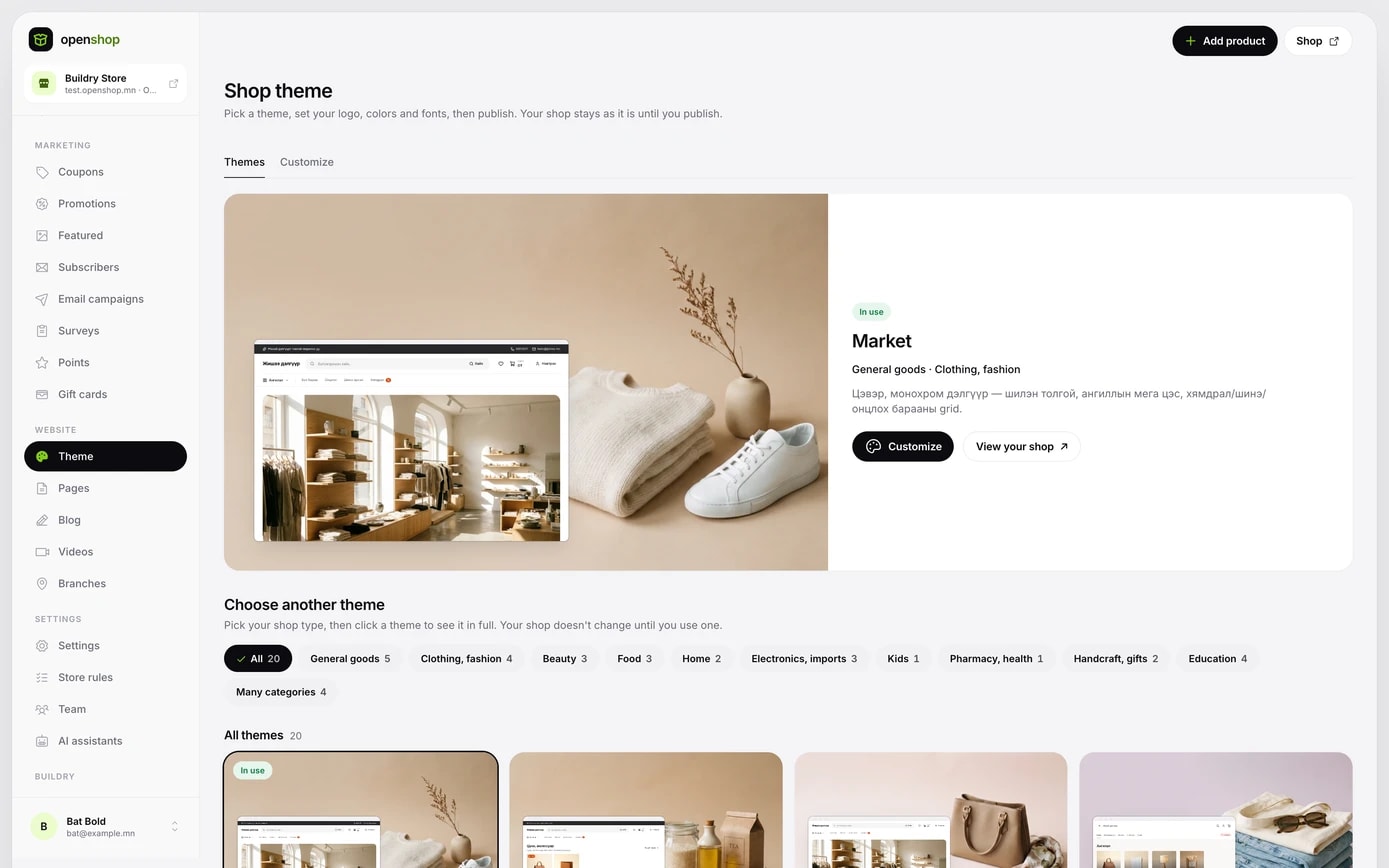
The Themes tab of the Theme section in the menu shows your current theme and the other themes. Filter by type, click a theme to see it in full, and choose it. Your products, blocks and announcements stay as they are.
Logo, colours, fonts
- On the Customize tab, set your logo and announcement, colours and fonts under Style. On the Page tab, click a block in the preview to edit it.
- Changes show at once in the preview window on the right. Switch between the computer and phone views to check them.
- Your shop does not change until you click Publish.