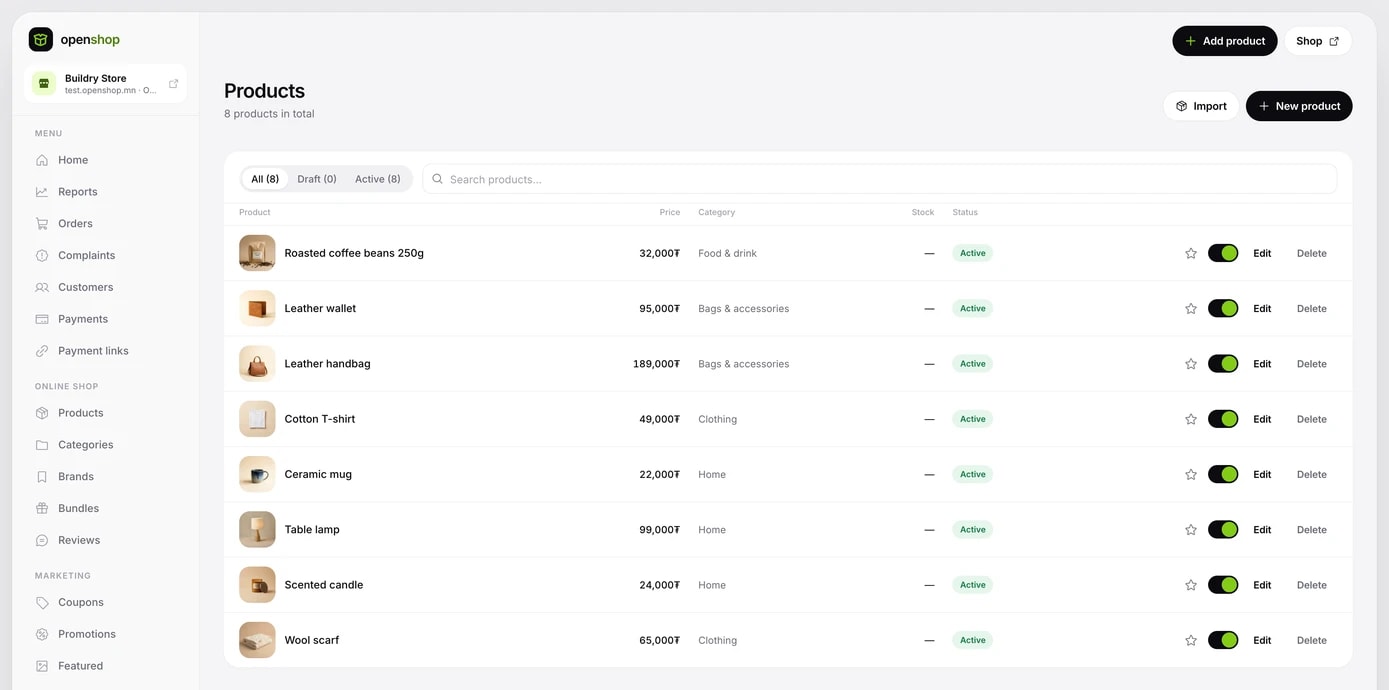
A new product
- Click New product in the Products section.
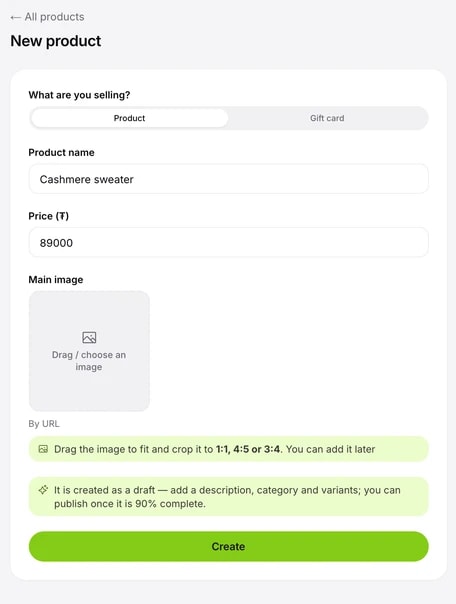
- Enter the product name, price and main photo. Crop the photo to 1:1, 4:5 or 3:4.
- Click Create and the product is created as a draft, with the full edit page open.
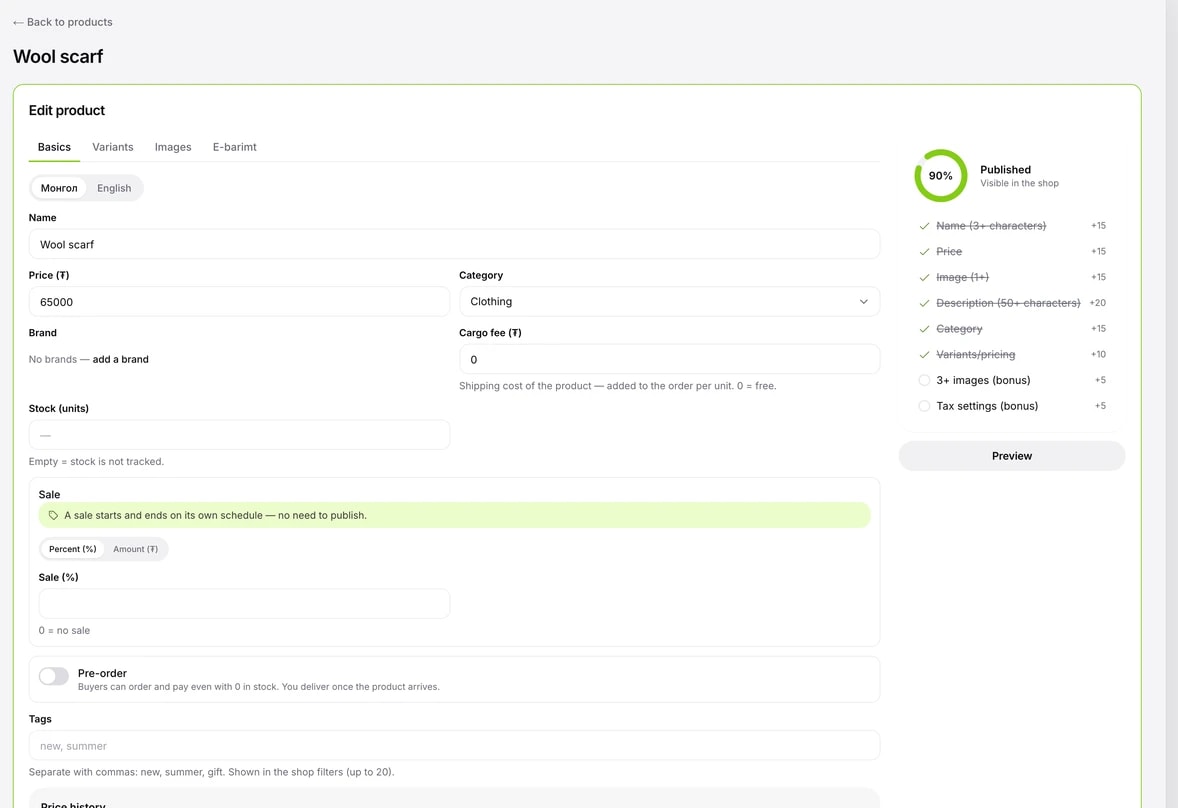
On the edit page, fill in the description, category, brand, stock, sale, pre-order and tags. The checklist on the right shows, as a percentage, what is missing before you can publish.
Options and variants
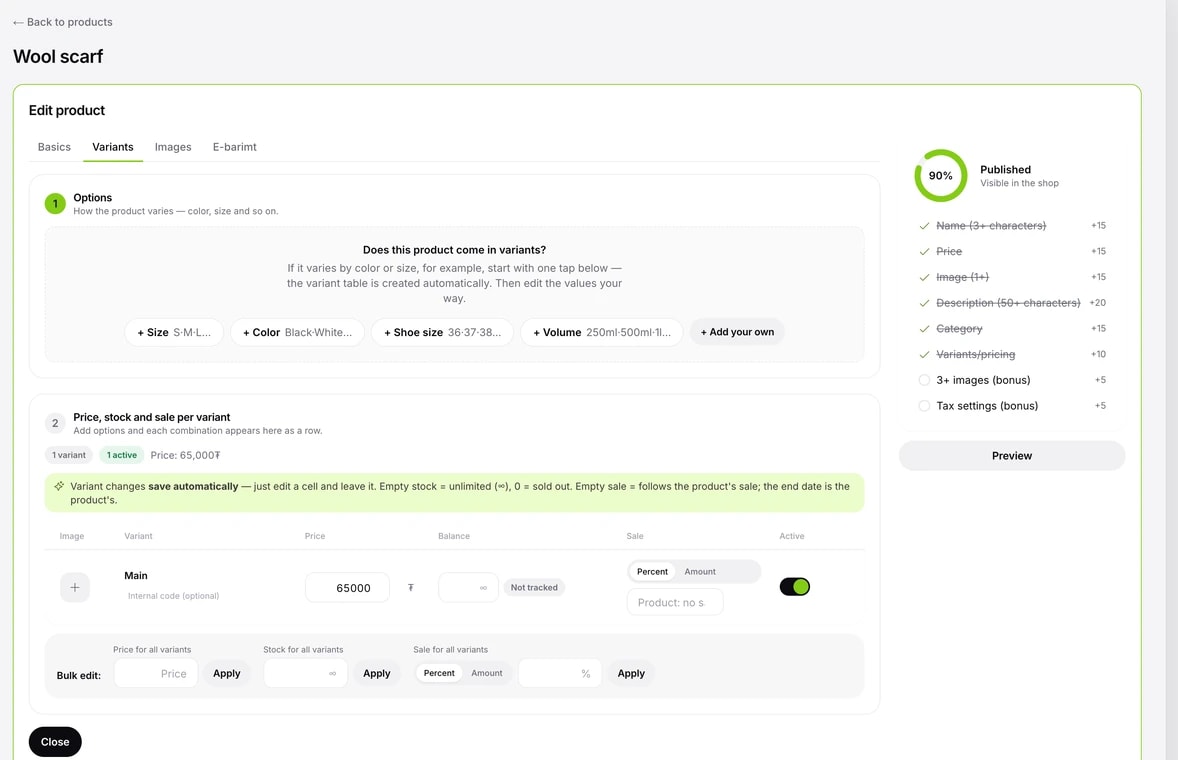
On the Variants tab, add ready-made options such as Size and Colour, or your own, and each combination becomes a separate variant. Edit each variant's price and stock in the table, or set them for all at once. Changes are saved automatically.
Publishing your products
A new product is saved as a draft. To publish it you need a name, price, photo, a description of more than 50 characters and a category. If anything is missing, a list shows what.